 PearPass
Adding Your First Item
Now that your vault is ready, it's time to add your first item. Items can include passwords, login credentials, secure notes, or other sensitive information.
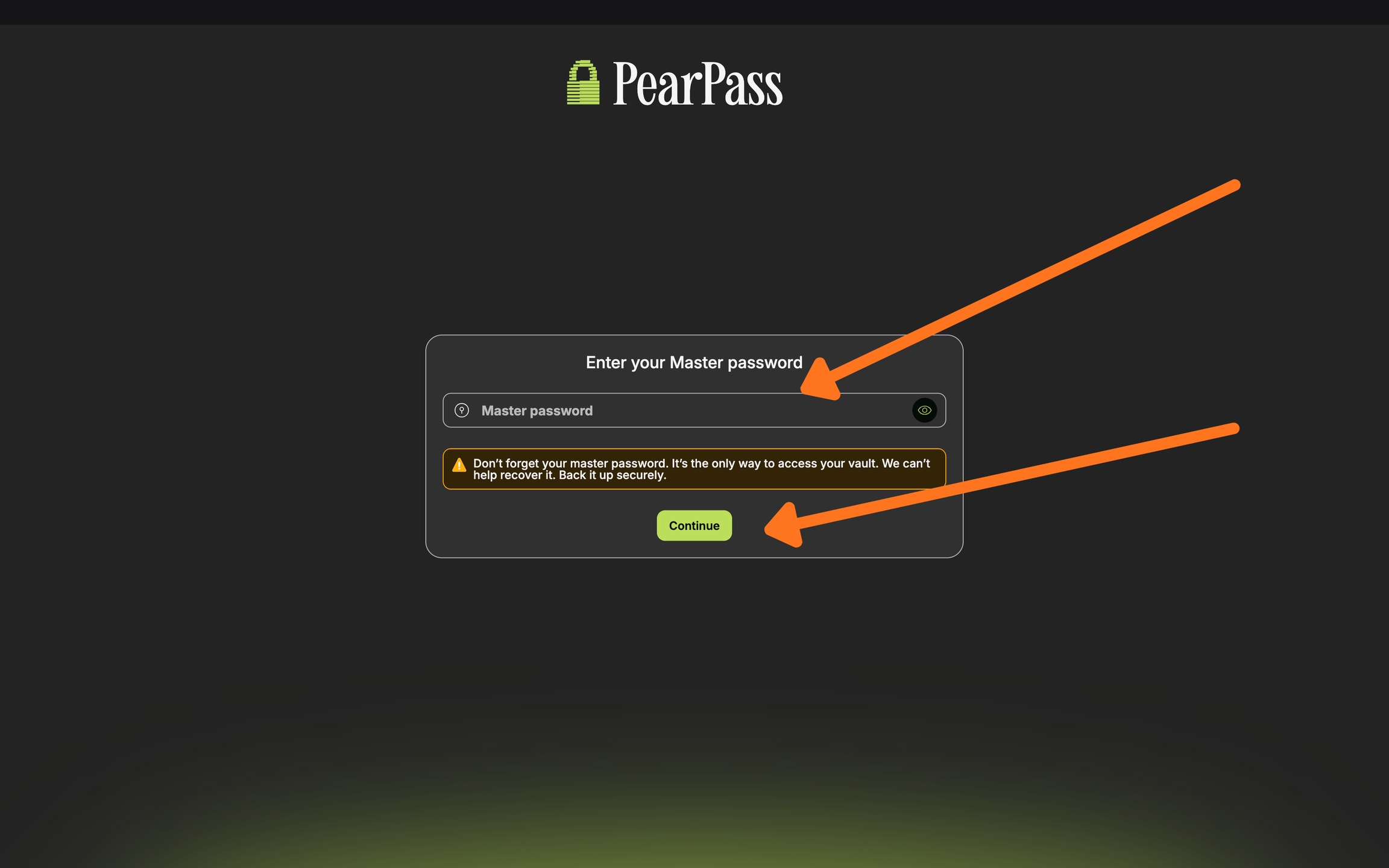
Sign in
Open your PearPass application on your computer and sign in with your master password.
Select a vault
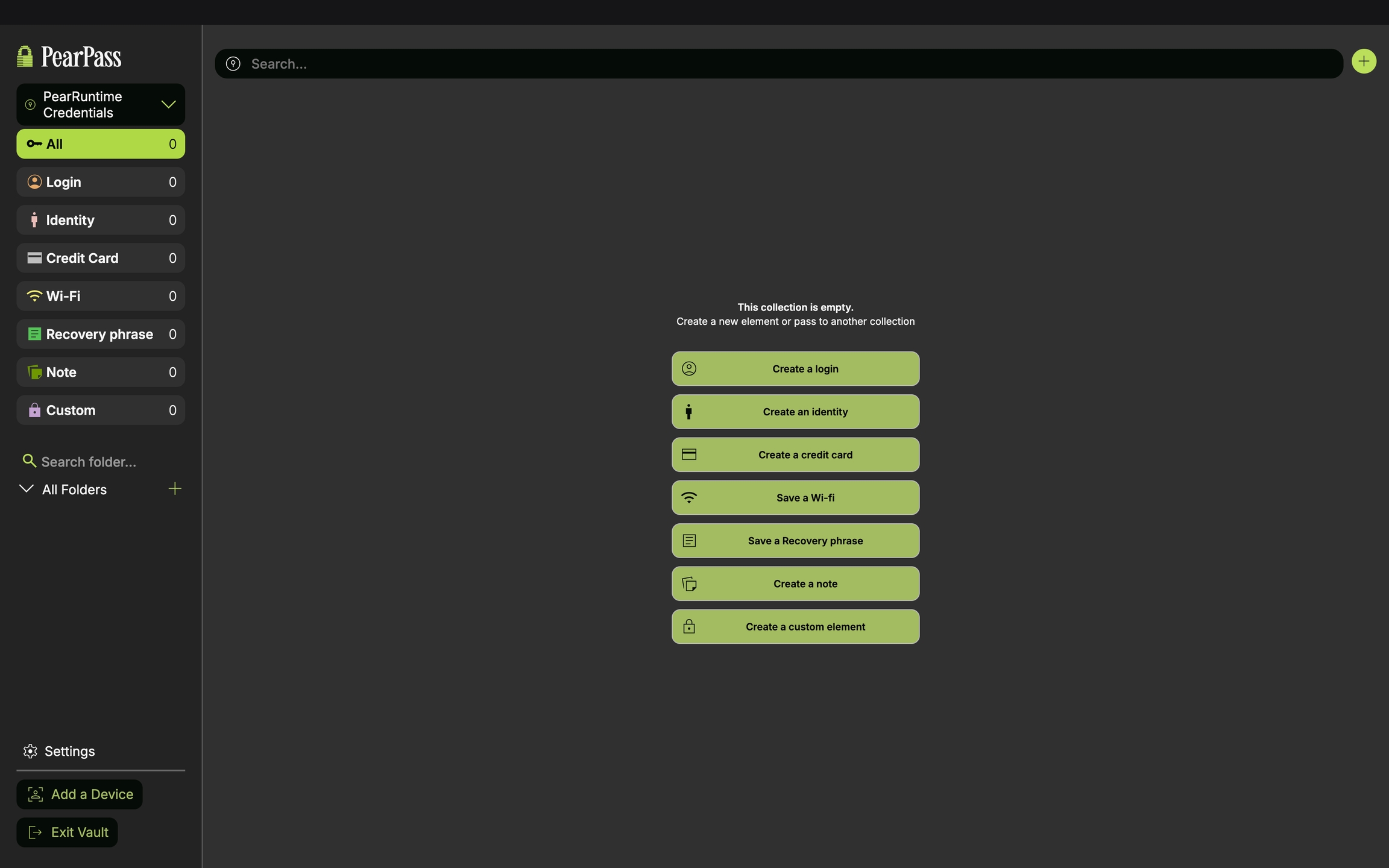
Select the vault where you want to store the item. For this example, we'll use the PearRuntime Credentials vault.

Choose item type
Select the type of item you want to add to your vault. For this example, we'll select Create a Login.
Enter item details
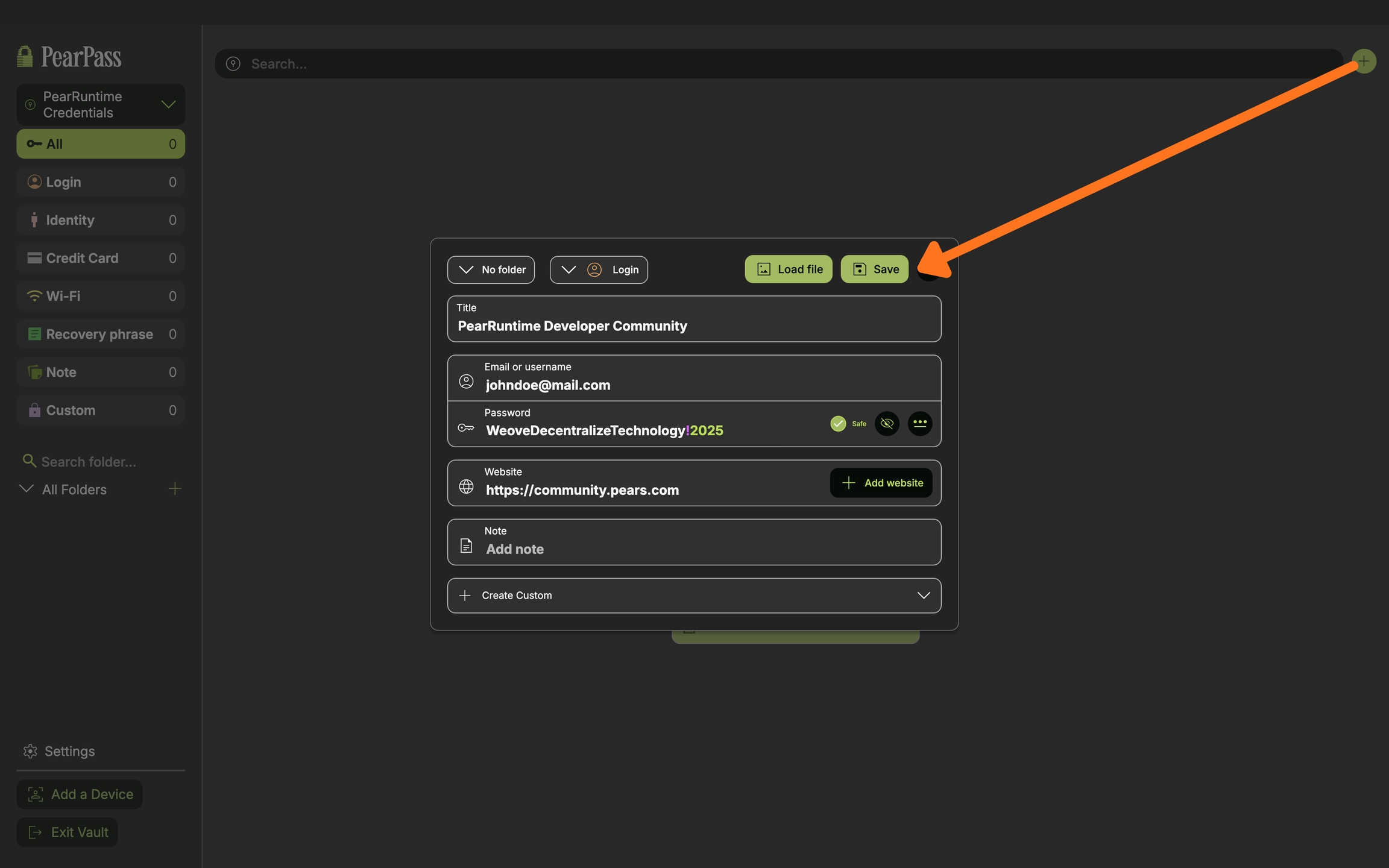
Enter the item details according to the type you selected.
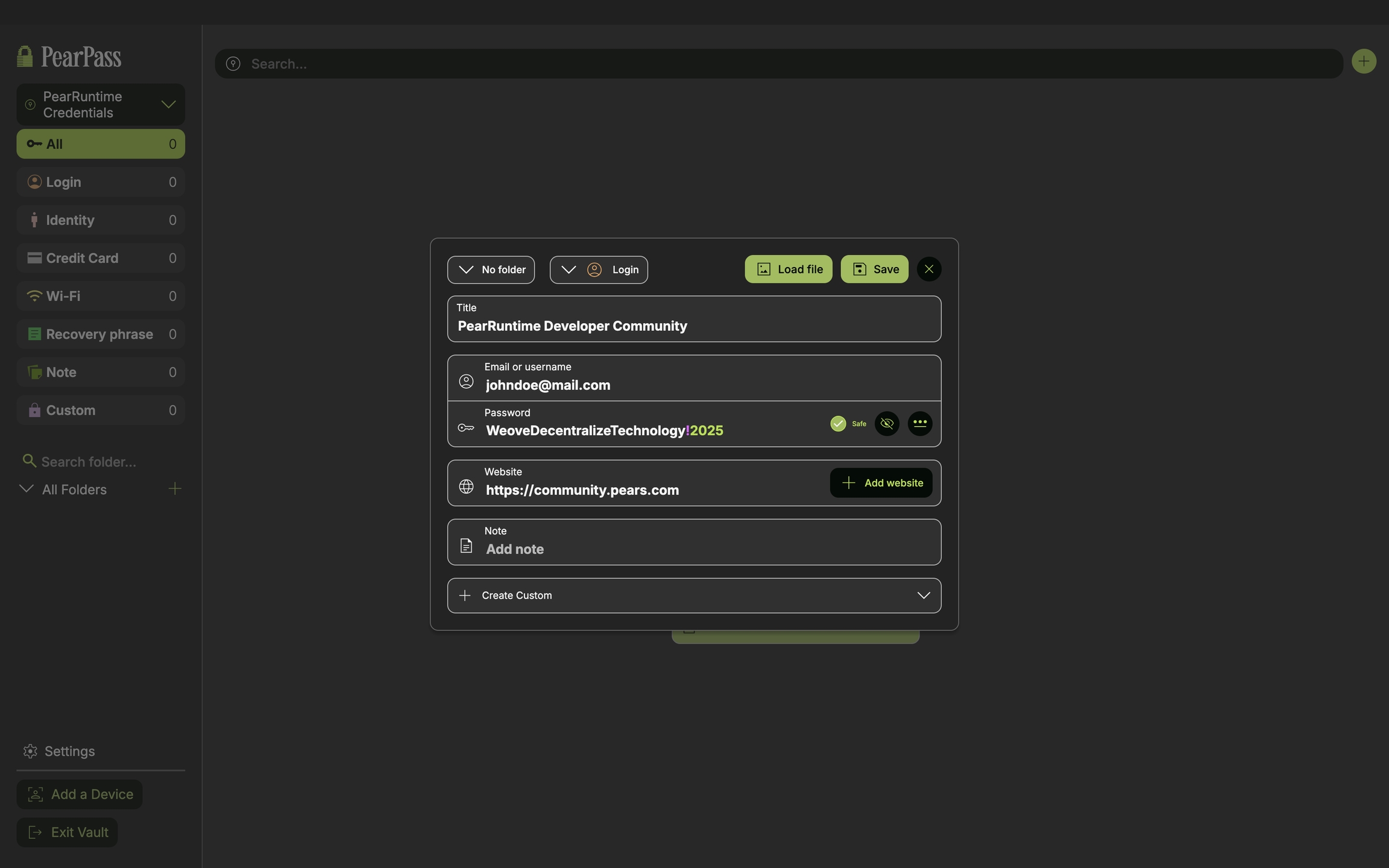
Save
Click Save to add the item to your vault.
Sign in
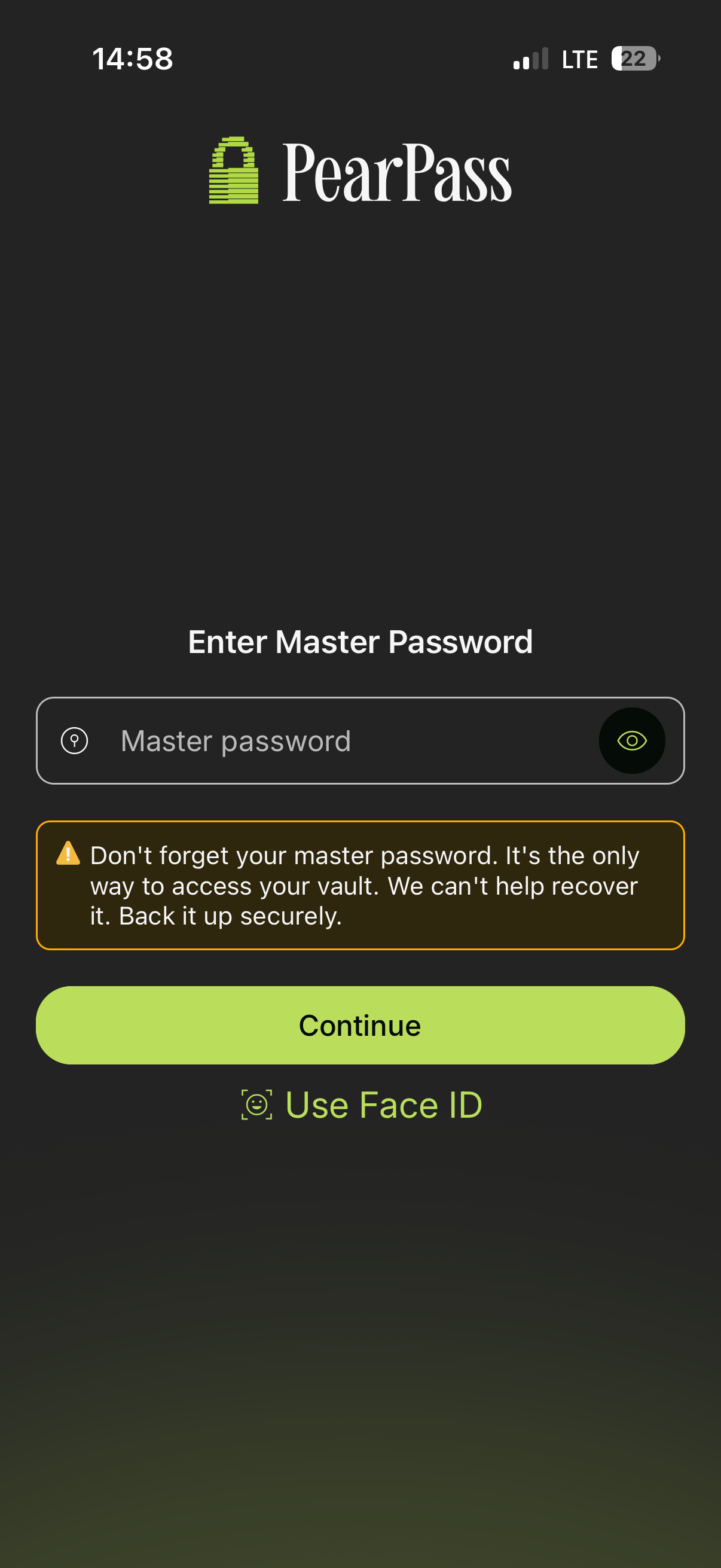
Open PearPass on your mobile device and sign in with your master password.
Select a vault
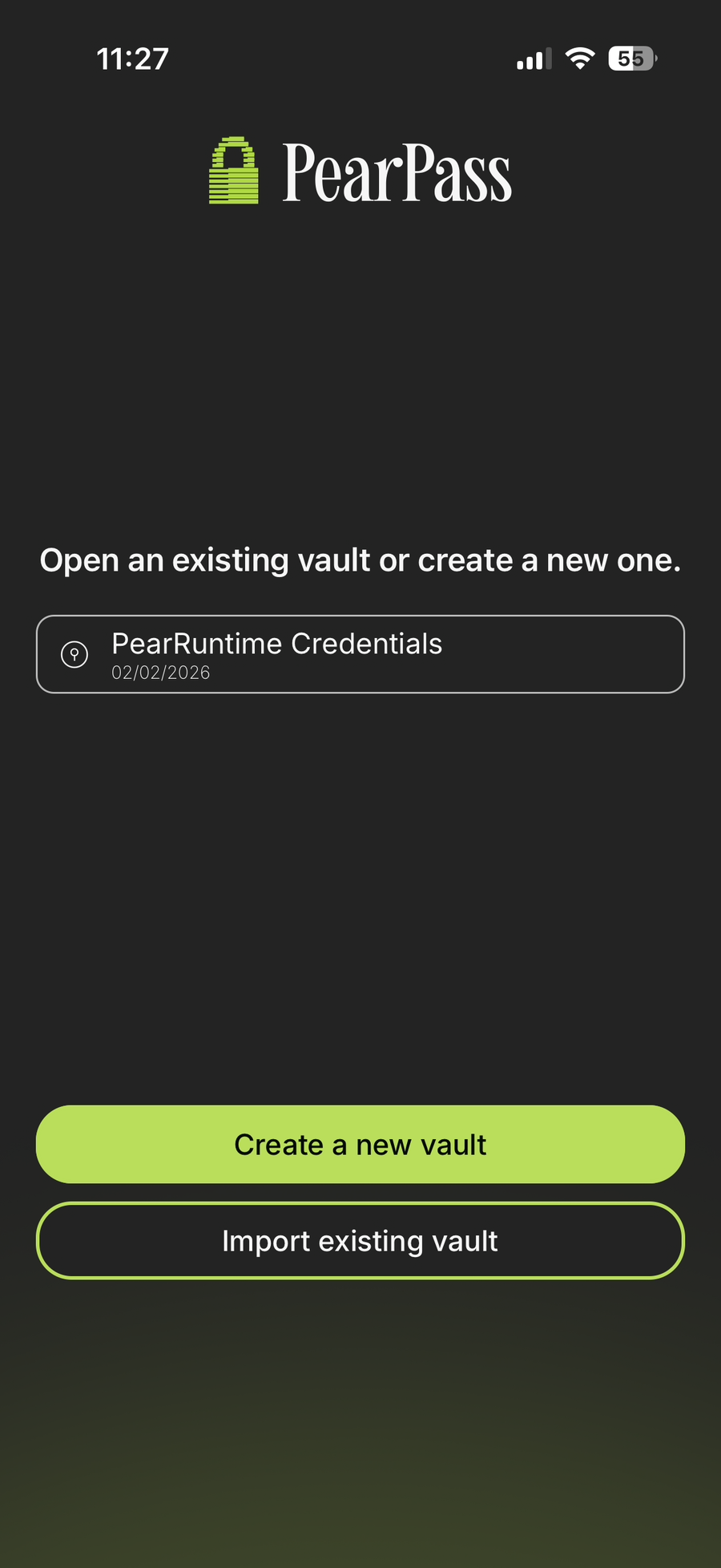
Select the vault where you want to store the item. For this example, we'll use the PearRuntime Credentials vault.
Choose item type
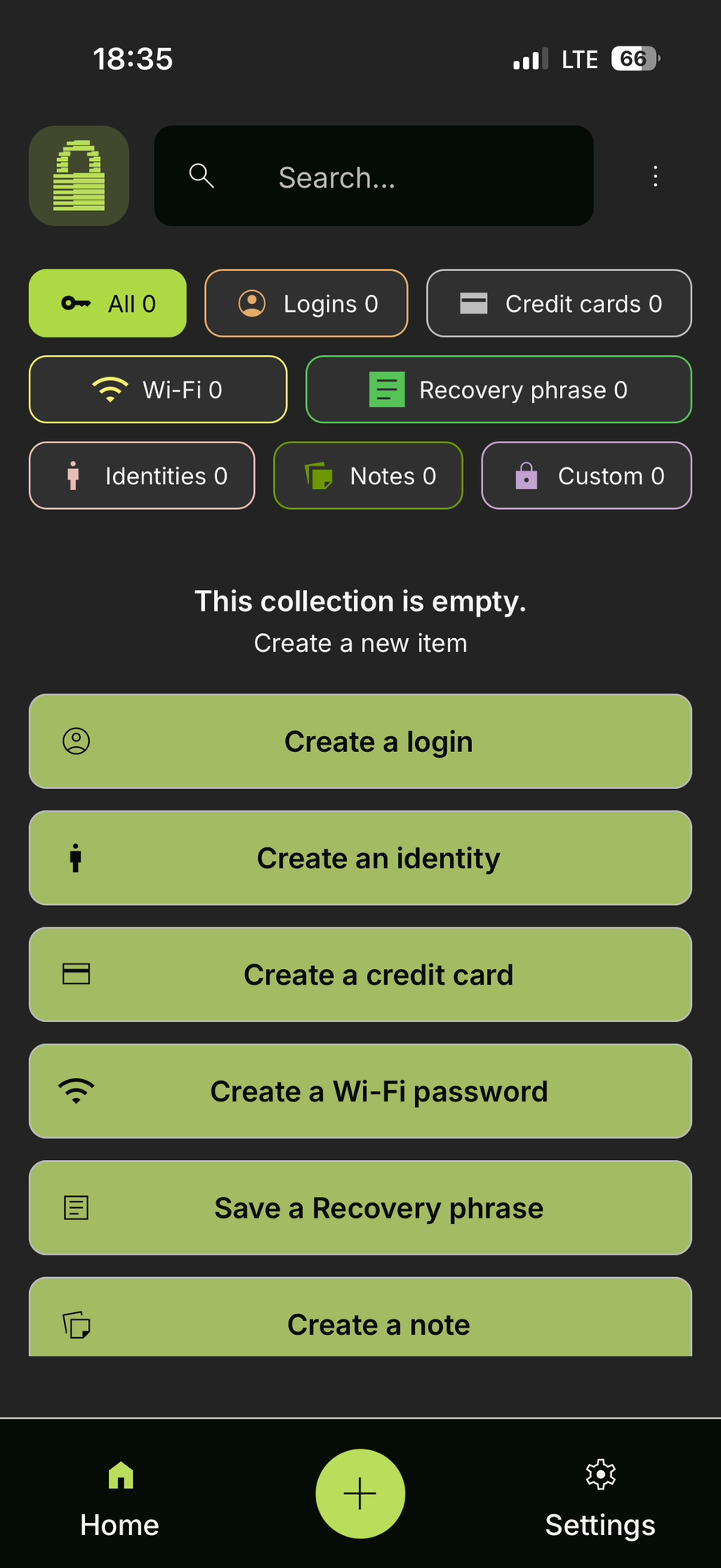
Select the type of item you want to add to your vault. For this example, we'll select Create a Login.
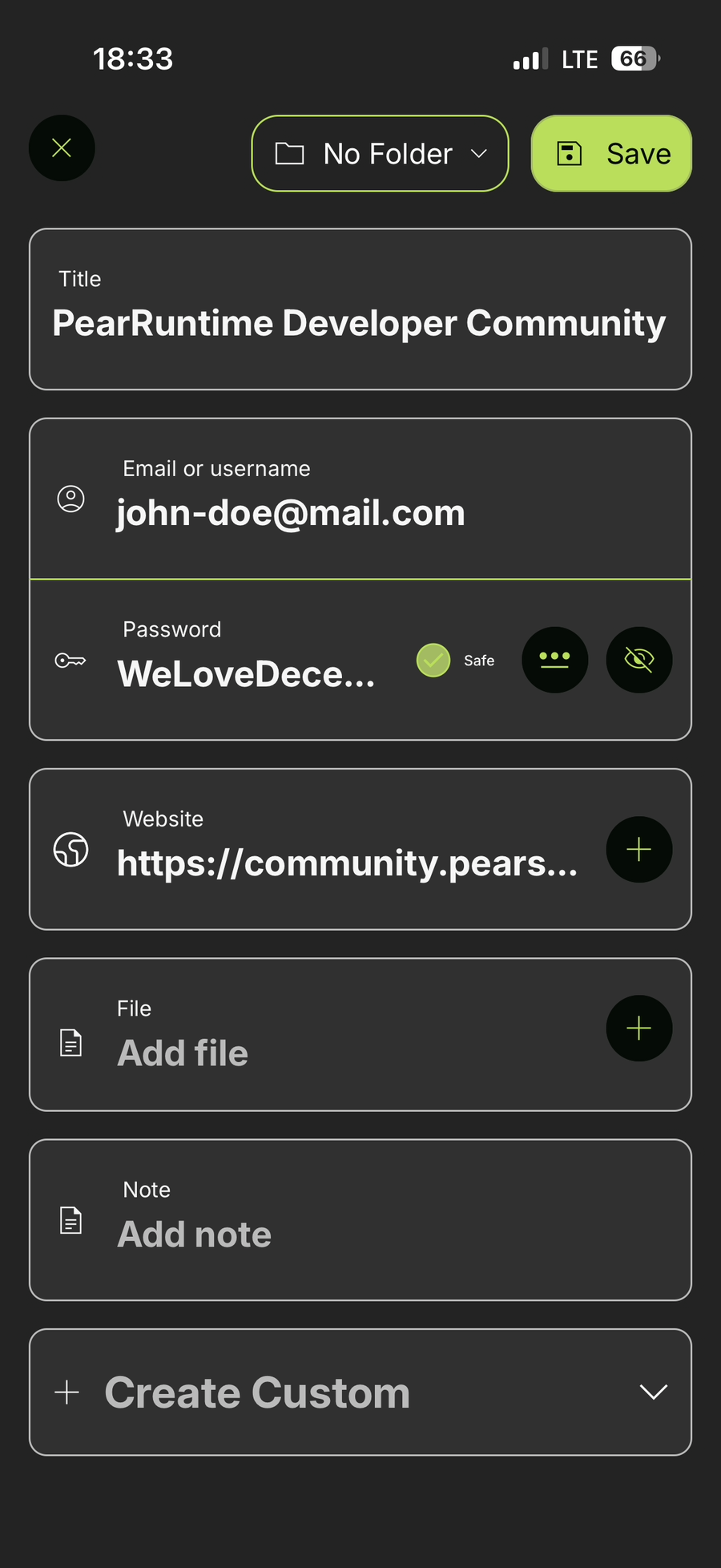
Enter details and save
Enter the item details according to the type you selected, then click Save to add the item to your vault.