 PearPass
How to Activate the Browser Extension
Connect the PearPass browser extension to your desktop app to access your credentials in your browser.
The browser extension requires the PearPass desktop app to be opened and running. Without the desktop app running, the extension cannot access your credentials.
Install the browser extension
Install the PearPass browser extension. See the Browser Extension Installation Guide.
Activate the browser extension
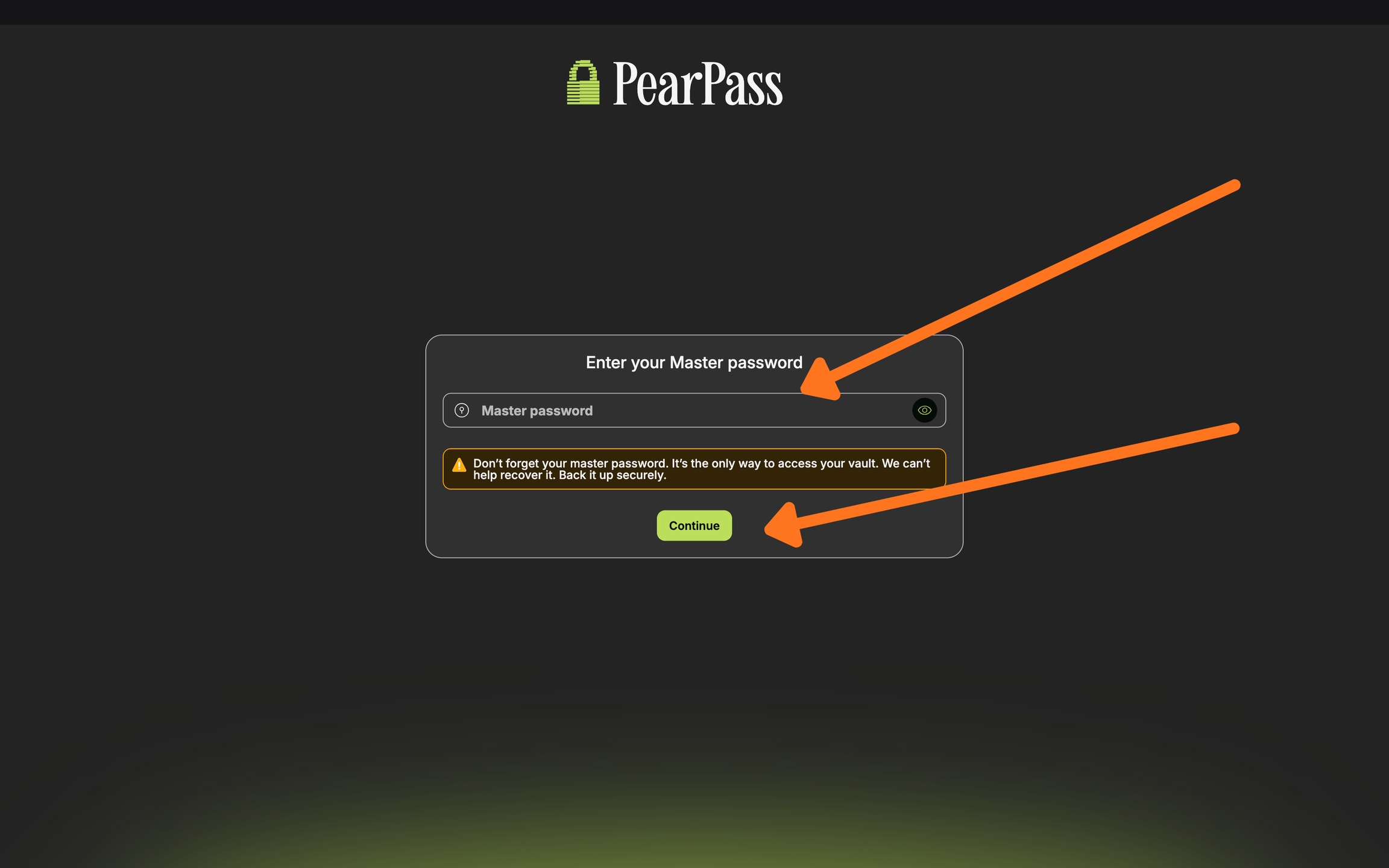
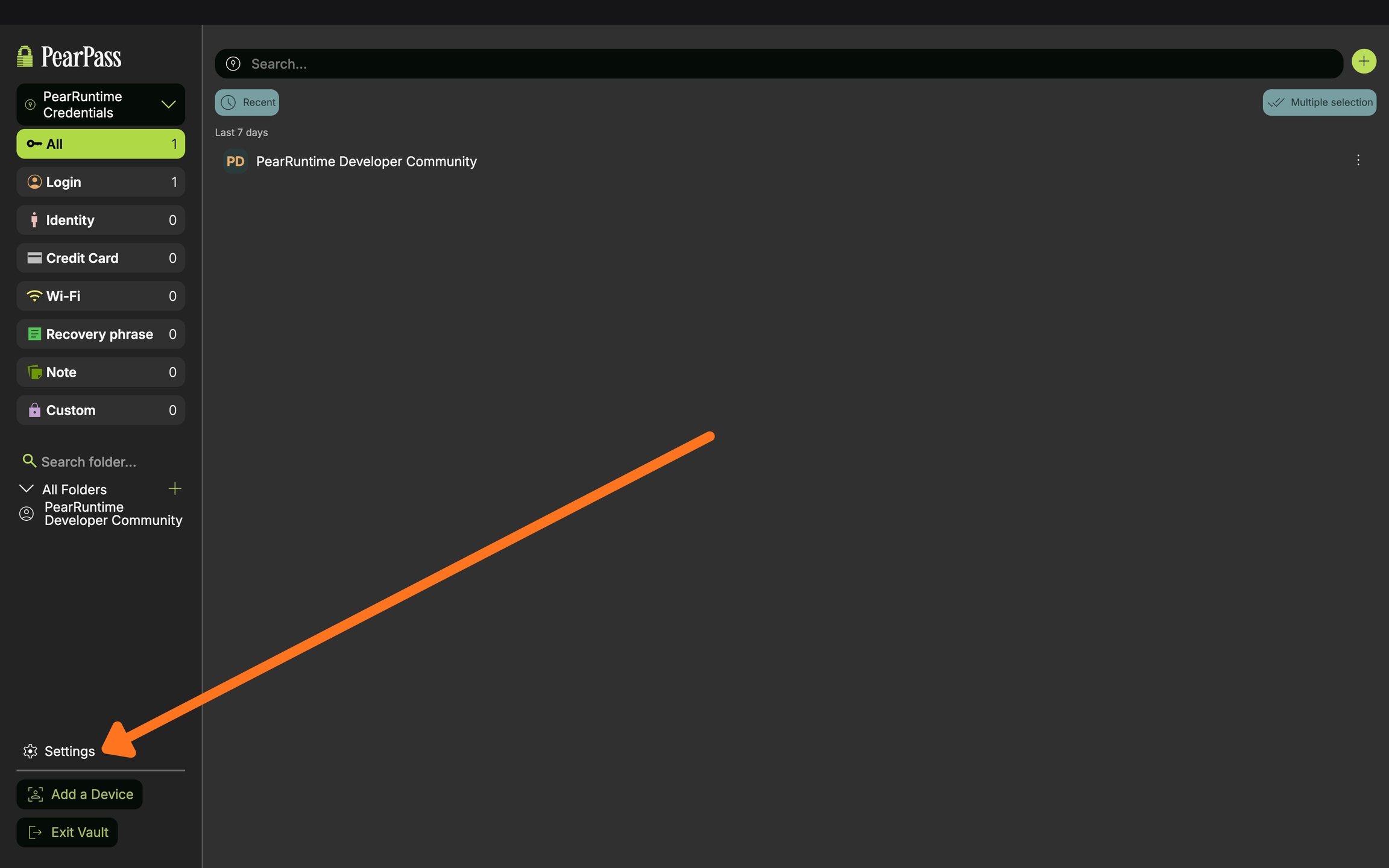
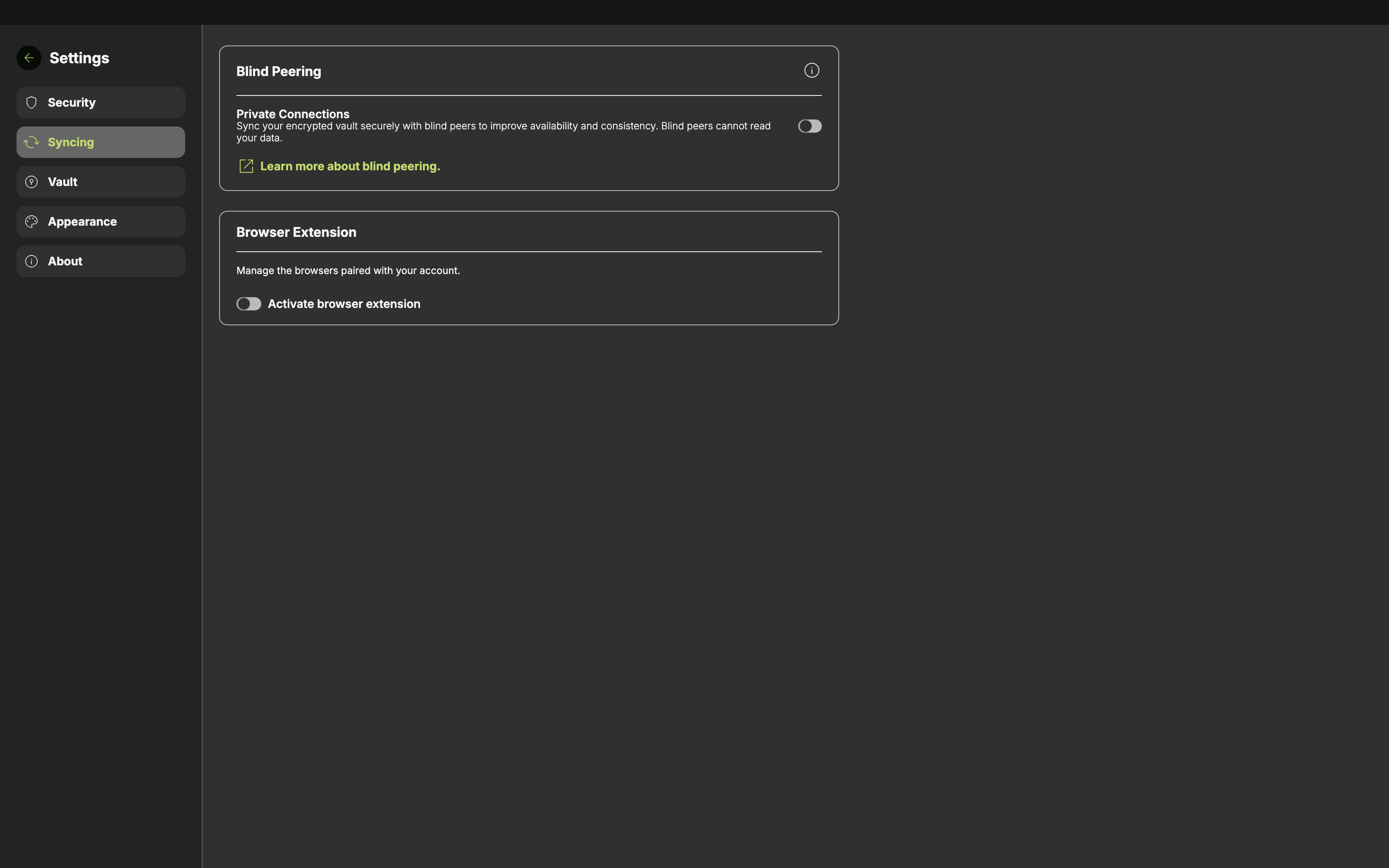
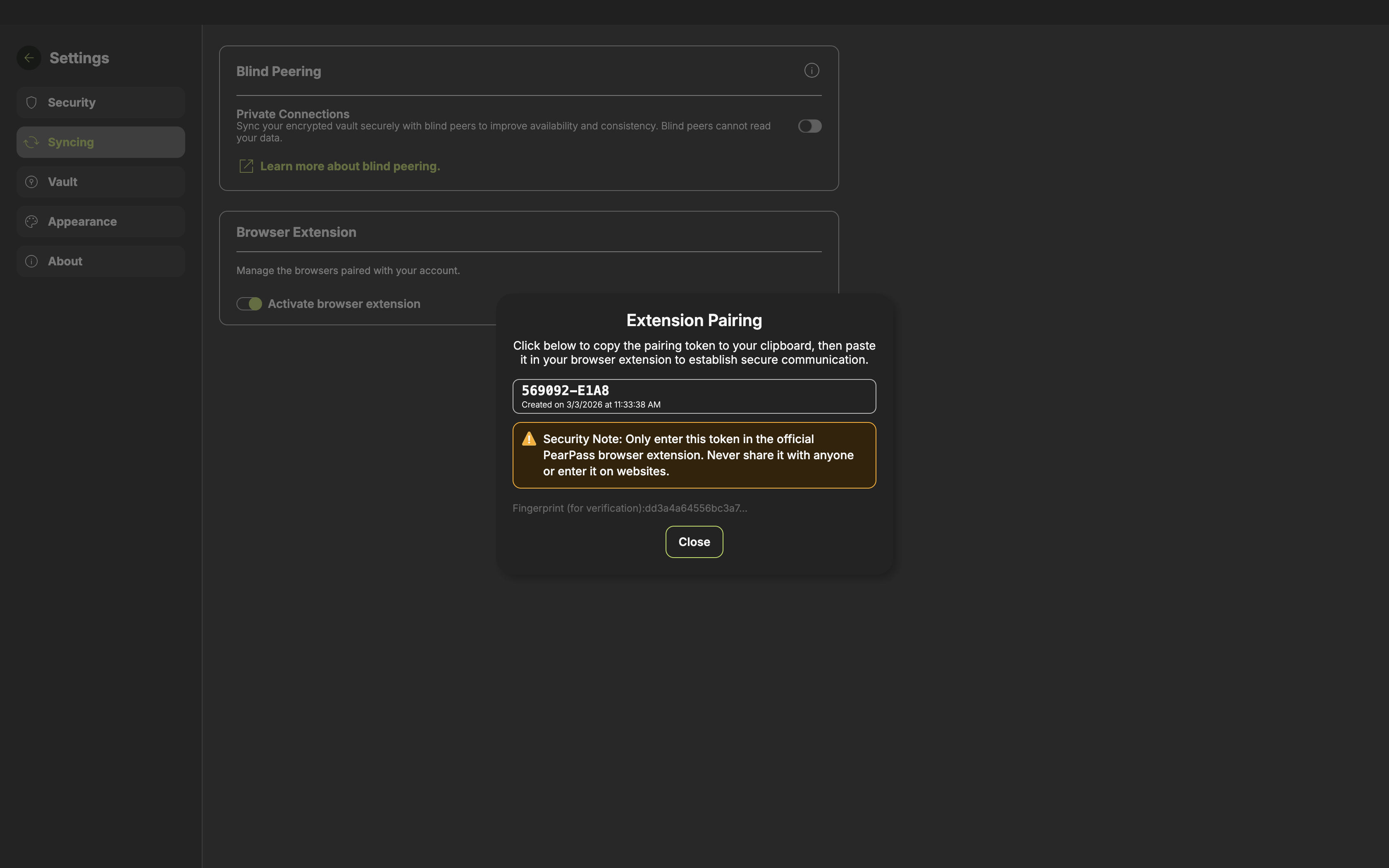
On the side menu bar, click Syncing. In the Syncing screen, navigate to the Browser Extension section and turn on Activate browser extension.
Paste the token and verify
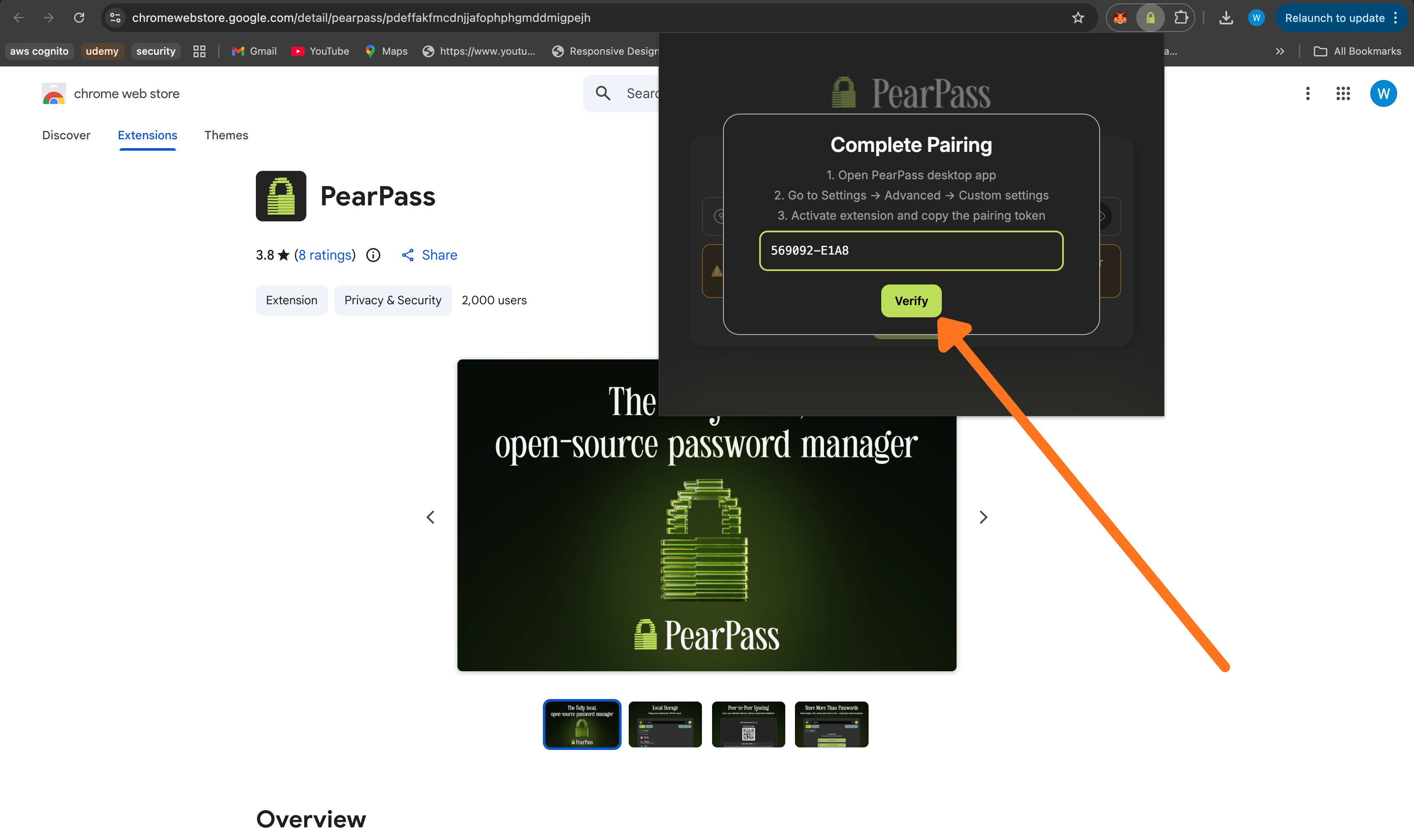
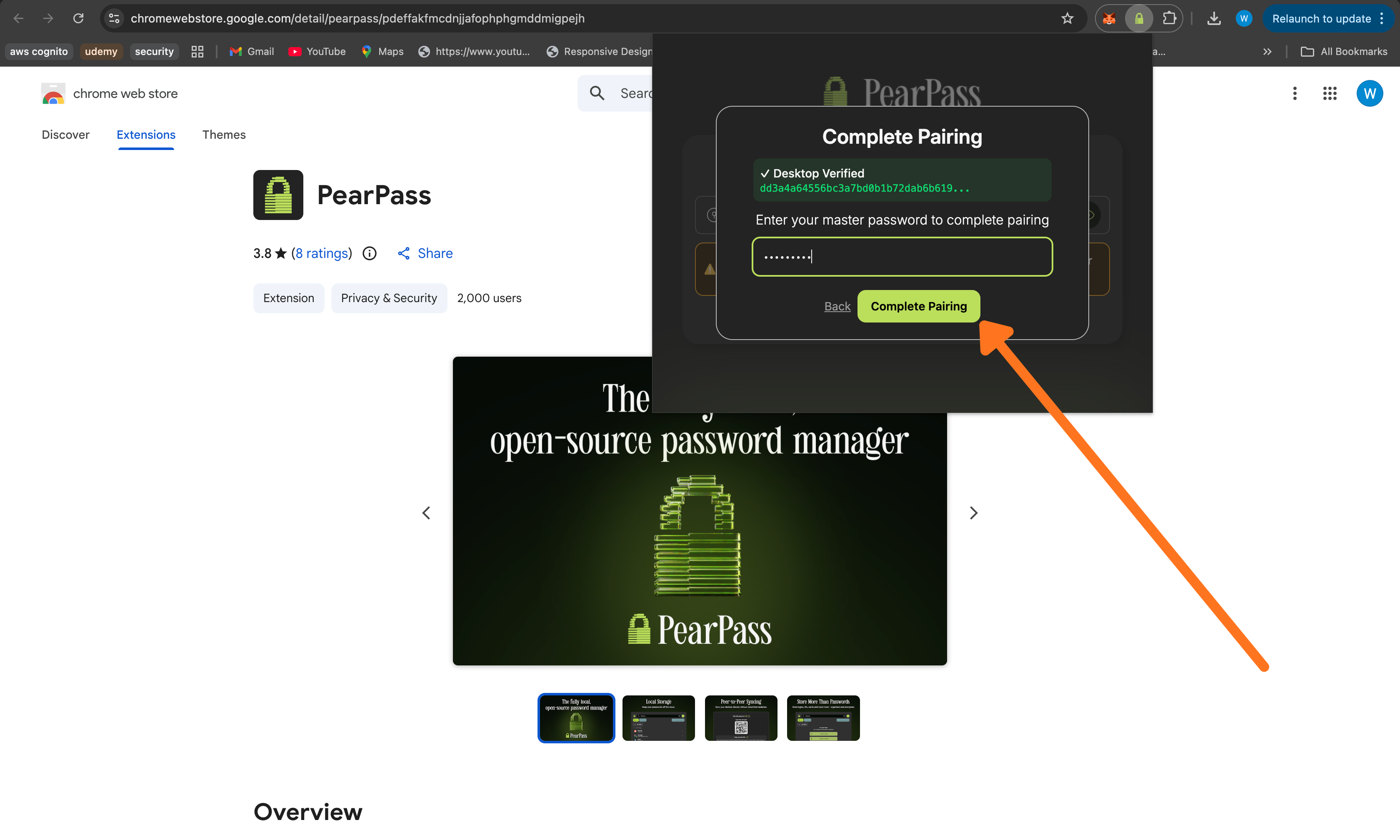
Open your browser and click the PearPass extension icon. Paste the token into the input field and click Verify.